
Schoolyear not starting after download (Windows)
After downloading and installing Schoolyear, the application should be launched by the steps that are displayed on screen. In some events, the Schoolyear environment does not start and you get stuck on the screen below, even though Schoolyear is installed:
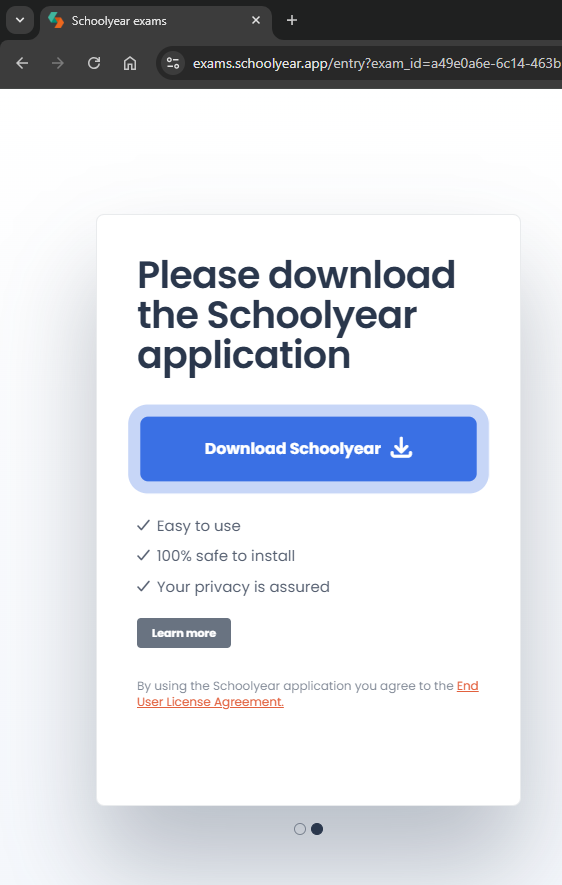
Cause: Schoolyear can't access the local network
Schoolyear requires local network access to verify that the local installation succeeded. If this check fails, Schoolyear will not start after downloading and you get stuck on the screen like displayed above. In some cases you must explicitly grant local network access via a pop-up.
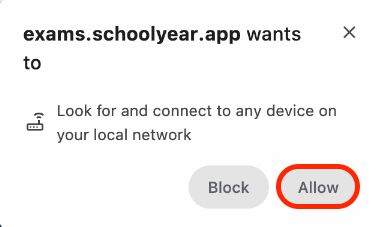
If this popup is ignored/blocked or not visible, Schoolyear will not start automatically after downloading.
Solution:
1. Go to your site settings in Google Chrome or Microsoft Edge.
Click the icon in the address bar on the left of the URL, as indicated below.
2. Enable Local network access (Allow)
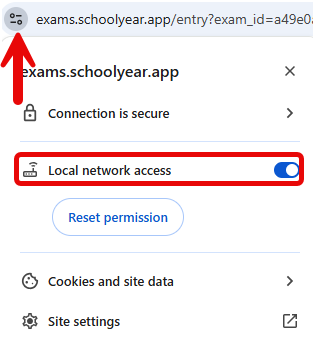
Google Chrome
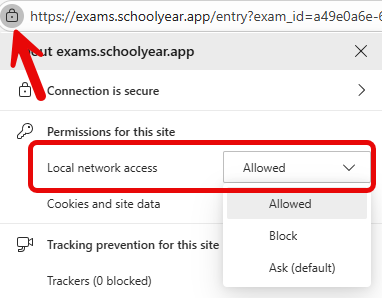
Microsoft Edge
3. Then start the exam again as you initially did. We recommend going to Ans and selecting your exam again.