
Common Ans issues
I cannot log in to Ans. What should I do?
Make sure you select “Log in with your school account”. Then select Wageningen University & Research (WUR). Do not enter your WUR email address and password manually on the Ans login page.
The sound icon keeps appearing in the middle of the screen. What should I do?
Refresh the page using the refresh icon in your browser. You can also use the keyboard shortcut Ctrl + Shift + R to perform a hard refresh.
An image is not loading or an attachment is not visible. What should I do?
Refresh the page using the refresh icon in your browser. You can also use the keyboard shortcut Ctrl + Shift + R to perform a hard refresh.
Common Schoolyear issues
Which Schoolyear installer to choose on macOS?
When downloading Schoolyear on an Apple Mac, you’ll be asked to choose between two installers:
- Apple Silicon – for Macs with Apple Silicon processors (M1, M2, M3, M4, etc.).
- Intel – for Macs with Intel processors.
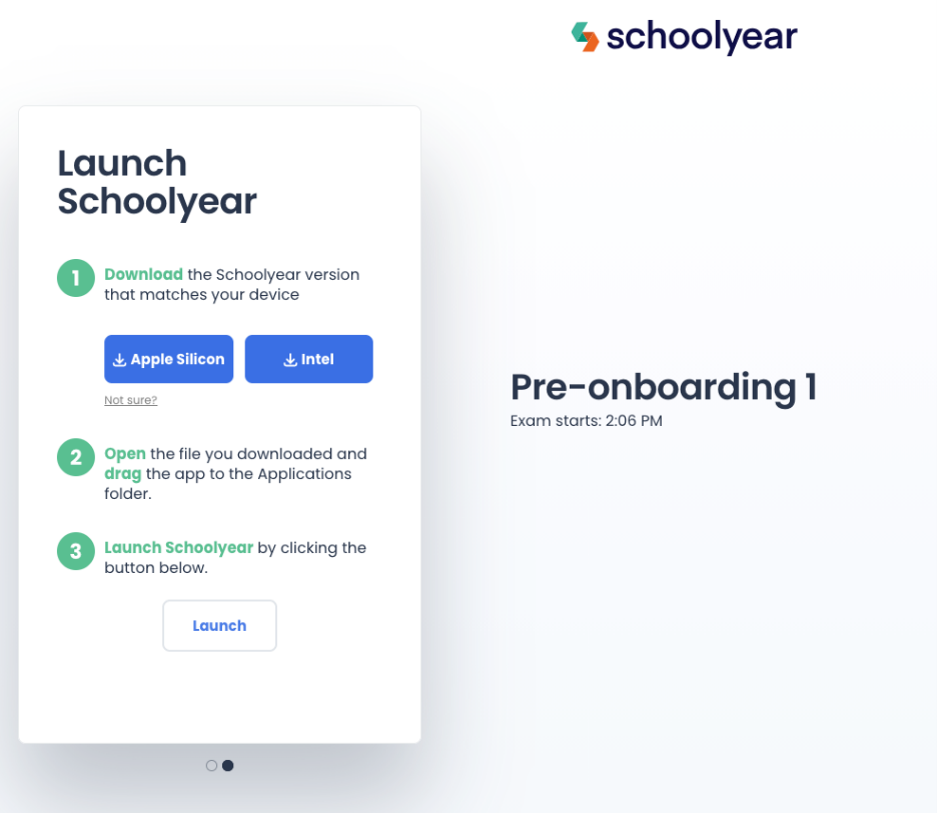
As a general guideline, Macs released before 2020 use Intel processors, while newer Macs generally use Apple Silicon. If you’re unsure which processor your Mac has, check Apple menu → About This Mac.
I have lost my internet connection. What should I do?
First, check the Wi-Fi icon in the bottom-right corner of your screen.
- Click the Wi-Fi icon and check whether you are connected to the correct network.
- If the connection does not work, log out of Schoolyear.
- Restart Schoolyear and try again.
If the problem persists, contact the invigilator.
I cannot access a webpage because navigation is blocked. What should I do?
This usually means that the webpage has not been whitelisted for the exam. If you believe you should be able to access the webpage, ask the invigilator to contact Digital Examination. Digital Examination will then coordinate with the teacher to determine whether access to the webpage should be enabled.
I cannot install Schoolyear because I am not allowed to. What should I do?
If you are using a managed laptop, you may not have the necessary permissions to install Schoolyear. In that case, please:
- Ask the invigilator to arrange a spare laptop through the WUR reception
- Use another laptop on which you have permission to install Schoolyear.
Schoolyear asks me for a 6-digit code. What should I do?
Do not start the exam by opening Schoolyear directly.
Always start your exam through Ans (ans.app). Schoolyear will be launched automatically as
part of the exam procedure.
Common Pruefster issues
An image is not loading or an attachment is not visible. What should I do?
Contact the Digital Examination Helpdesk. They will look for an alternative way to provide or display the image or attachment.
I am stuck on login.wur.nl during the Pruefster login procedure. What should I do?
Open a new browser tab and go directly to Ans (ans.app). Start your exam from Ans. Important: keep the Pruefster tab open so that the required recordings can continue.
Can not log in to Ans
Make sure to click on "Log in with your school account" and select Wageningen University & Research (WUR), instead of manually filling in your email and password.
My exam is in 1–2 days, but I have not received a Pruefster link. What should I do?
Contact Digital Examination by email (digital.examination@wur.nl) as soon as possible. Please include:
- Your name
- The course/exam name
- The date of the exam, if relevant